
15 AI tools that actually improve developer workflow in 2025 (not just hype)
Does AI pair programming actually boost developer productivity? We analyze real studies, benchmark data, and common myths to help you decide.

Open any tech newsletter and you'll find another AI tool promising to "revolutionize" how you code. Product Hunt launches three new AI coding assistants every week. Twitter threads declare that developers who don't adopt the latest tool will be left behind. The noise is exhausting.
Here's the reality: most of these tools don't survive contact with real projects. They demo well, generate impressive-looking code in controlled examples, and then fall apart when you need them for actual work. The suggestions don't fit your codebase. The integrations are clunky. The time spent fighting the tool exceeds the time it saves.
But some tools do deliver. They've moved past the hype cycle into genuine daily utility. Developers use them not because they're trendy but because they make work tangibly better—faster debugging, less boilerplate, smoother collaboration, fewer context switches.
This article focuses on those tools. We've tested dozens of AI developer tools throughout 2024 and into 2025, using them on real projects with real deadlines. The 15 tools that follow are the ones that stuck—the ones we actually kept using after the initial excitement faded.
We're not ranking them from best to worst. Different tools solve different problems, and the best tool for you depends on what you're building, how you work, and what friction points slow you down. Instead, we've organized them by category: coding assistants, UI generation, full-stack generators, code quality, documentation, and terminal tools.
For each tool, we'll cover what it actually does well, where it falls short, and when it makes sense to use. No affiliate links, no sponsored placements—just honest assessments based on real usage.
Let's cut through the noise.
How we evaluated these tools
Before diving into specific tools, let's be transparent about how we selected them. The AI tooling space is crowded with products that look impressive in demos but fail in daily use. Our evaluation focused on practical value, not feature lists or marketing claims.
Our selection criteria
- Real project usage. Every tool on this list has been used on production projects, not just toy examples. We tested them on existing codebases with established patterns, tight deadlines, and the messy complexity that real software involves. Tools that only shine on greenfield "build a todo app" demos didn't make the cut.
- Learning curve versus payoff. Some tools require significant investment to use effectively. That's fine if the payoff justifies it. We evaluated whether the time spent learning and configuring each tool actually translated into sustainable productivity gains. Tools that took hours to set up for minutes of benefit were excluded.
- Reliability over time. AI tools can be inconsistent. A tool that works brilliantly one day and produces garbage the next isn't useful—it's stressful. We favored tools that delivered predictable quality, even if that quality wasn't always perfect. Consistency matters more than occasional brilliance.
- Integration with existing workflows. Developers already have established environments, editors, and habits. Tools that demanded we restructure our workflow around them faced a higher bar than tools that met us where we already work. The best tools feel like natural extensions of your existing setup.
- Active development and stability. The AI space moves fast. Tools that haven't been updated in months or that break regularly with API changes aren't reliable choices for professional work. We prioritized tools with active teams, regular updates, and stable foundations.
What we excluded
We deliberately excluded several categories of tools from this list.
- Overly niche tools. Some AI tools solve very specific problems for very specific stacks. They might be excellent for their target audience but aren't broadly applicable enough to recommend generally.
- Unstable beta products. Many promising tools are still in early development. We'd rather wait until they mature than recommend something that might frustrate you with bugs and breaking changes.
- Unverifiable claims. If a tool's main selling point is a productivity metric we couldn't verify through our own usage, we left it out. "10x faster coding" means nothing without context.
- Enterprise-only tools. Some excellent AI tools are only available through enterprise contracts with opaque pricing. We focused on tools that individual developers and small teams can actually access.
A snapshot in time
One important caveat: this article reflects the state of AI developer tools in mid-2025. The space evolves rapidly. Tools that are mediocre today might improve dramatically in six months. New entrants might displace current leaders. We'll update this guide as the landscape shifts, but treat any tool recommendation as a starting point for your own evaluation, not a permanent verdict.
With that context established, let's look at the tools themselves.
AI coding assistants
This category represents the core of AI-assisted development: tools that help you write, understand, and modify code. They're the workhorses of the AI developer toolkit, used constantly throughout the day rather than for specific tasks.
Cursor

Cursor has become the default recommendation for developers ready to go all-in on AI-assisted coding. It's not an extension or a plugin—it's a complete IDE built from the ground up around AI interaction.
What it does well. Cursor's standout feature is codebase awareness. It indexes your entire project and understands relationships between files, so when you ask it to add a feature, it knows your existing patterns, naming conventions, and architecture. The Composer feature allows multi-file edits in a single operation—describe what you want at a high level, and Cursor proposes coordinated changes across your project.
The chat interface feels natural for complex requests. You can paste error messages, describe bugs, or ask for refactoring suggestions, and Cursor responds with context-aware solutions. Tab completion handles the smaller stuff: finishing lines, suggesting function bodies, anticipating your next move.
Where it falls short. Cursor requires commitment. You're switching IDEs, which means reconfiguring settings, relearning shortcuts, and potentially losing extensions you relied on in VS Code. The AI features can also be distracting—constant suggestions interrupt flow if you don't configure them carefully. And while the free tier is generous, heavy usage requires a paid subscription.
When to use it. Cursor makes sense if you're working on complex projects where codebase context matters, and you're willing to make it your primary editor. For small scripts or quick edits, it's overkill. For serious development work, it's currently the most capable option.
Pricing. Free tier with limited requests. Pro plan at $20/month for unlimited usage.
GitHub Copilot
GitHub Copilot remains the most widely adopted AI coding assistant, largely because it meets developers where they are. It integrates directly into VS Code, JetBrains IDEs, and other popular editors without requiring you to change your environment.
What it does well. Copilot excels at reducing keystrokes. Its inline suggestions anticipate what you're about to type and complete it for you—function bodies, boilerplate patterns, repetitive code structures. For developers who've used it long enough, accepting Copilot suggestions becomes muscle memory. The cognitive load of typing routine code nearly disappears.
Copilot Chat adds conversational capabilities within your existing editor. You can ask questions about code, request explanations, or get help with debugging without leaving your workflow. The integration is seamless enough that it doesn't feel like a separate tool.
Where it falls short. Copilot's context window is narrower than Cursor's. It sees the current file and some surrounding context, but it doesn't deeply understand your entire codebase. This means suggestions sometimes conflict with patterns established elsewhere in your project. It's also more passive than Cursor—better for acceleration than for complex, multi-file operations.
When to use it. Copilot is the pragmatic choice if you're happy with your current editor and want AI assistance without disruption. It provides meaningful productivity gains with minimal workflow change. If you're not ready to switch to Cursor but want more than basic autocomplete, Copilot is the answer.
Pricing. Free for verified students and open source maintainers. Individual plan at $10/month. Business plan at $19/user/month.
Claude
Claude occupies a different space than Cursor and Copilot. It's not an IDE integration—it's a conversational AI that excels at extended reasoning, architectural discussion, and the kind of thinking that happens before and around coding.
What it does well. Claude shines when you need to think through a problem rather than just implement it. Architecture decisions, debugging complex issues, code review, technical writing—these tasks benefit from Claude's depth of reasoning. You can paste code, describe symptoms, explore options, and have a genuine technical conversation.
The context window is massive, allowing you to share entire files or long conversation histories without losing coherence. Claude remembers what you discussed earlier in the conversation and builds on it. For multi-step reasoning or problems that require holding many details in mind simultaneously, this capacity matters.
Claude also writes and explains code well. If you need to understand an unfamiliar codebase, document a complex system, or get a second opinion on your approach, Claude provides thoughtful, nuanced responses.
Where it falls short. Claude doesn't see your codebase directly. You have to bring context to it through copy-pasting or file uploads. This makes it less suited for implementation work where project-wide awareness matters. It's also a separate application—switching to Claude means leaving your editor, which interrupts flow.
When to use it. Reach for Claude when you need to think, not just type. Architecture planning, debugging sessions where you're genuinely stuck, code review, documentation, and technical decision-making all benefit from Claude's reasoning capabilities. It complements rather than replaces your in-editor AI assistant.
Pricing. Free tier with limited usage. Pro plan at $20/month. Team plans available.
Google Antigravity
Launched alongside Gemini 3 in November 2025, Google Antigravity represents a new paradigm: the agent-first IDE. While other tools add AI assistance to traditional coding, Antigravity is built around autonomous agents that can plan, execute, and verify complex tasks across your editor, terminal, and browser.
What it does well. Antigravity's killer feature is the Manager View—a control center for orchestrating multiple agents working in parallel across different workspaces. You can dispatch five agents to work on five different bugs simultaneously, effectively multiplying your throughput. This isn't just autocomplete; it's delegating entire workflows.
Agents generate Artifacts—tangible deliverables like task lists, implementation plans, screenshots, and browser recordings—that let you verify their work at a glance. You can leave feedback directly on Artifacts, and agents incorporate your input without stopping execution. The platform also includes browser subagents that can launch Chrome, interact with your application's UI, and validate functionality automatically.
The model flexibility is impressive. Beyond Gemini 3 Pro, Antigravity supports Claude Sonnet 4.5 and GPT-OSS, letting you choose the model that fits each task.
Where it falls short. Antigravity is still in public preview, which means rough edges remain. Giving AI agents access to your terminal and browser requires careful permission management—the power comes with risk. The agent-first paradigm also demands a mental shift that not every developer will find comfortable. You're supervising rather than doing, which some find less satisfying.
When to use it. Antigravity shines when you have multiple parallel tasks that can be delegated: fixing several bugs, generating tests across modules, or scaffolding multiple features simultaneously. It's less suited for deep, focused work on a single complex problem where you want hands-on control.
Pricing. Free during public preview with generous rate limits on Gemini 3 Pro.
UI and frontend generation
Building user interfaces has always been time-consuming. Translating designs into code, tweaking spacing, adjusting responsive breakpoints—these tasks eat hours without requiring deep thinking. AI tools in this category compress that work dramatically, turning natural language descriptions into production-ready components.
v0
v0, built by Vercel, has become the default tool for rapid UI prototyping. Describe a component in plain English, and v0 generates clean React code with Tailwind CSS styling in seconds.
What it does well. The speed is remarkable. You can describe a component—"a pricing table with three tiers, the middle one highlighted, with a toggle for monthly and annual billing"—and have working code before you finish your coffee. The output isn't rough prototype quality; it's genuinely production-ready, following modern React patterns and responsive design principles.
Iteration is where v0 truly shines. Don't like the spacing? Ask for adjustments. Want a different color palette? Describe it. Need to add a feature? Just say so. Each iteration takes seconds, allowing you to explore dozens of design variations in the time a manual approach would require for one.
The components integrate cleanly with the Next.js ecosystem, and v0 understands shadcn/ui conventions, making it particularly powerful for teams already using that component library.
Where it falls short. v0 generates components, not applications. It doesn't handle backend logic, state management across components, or complex application architecture. The generated code sometimes needs adjustment to fit your specific design system or naming conventions. And while the output is good, it occasionally produces components that look slightly generic—recognizably "AI-generated" to experienced eyes.
When to use it. Reach for v0 when you need UI components fast: landing page sections, dashboard widgets, form layouts, data display components. It's ideal for prototyping, for generating starting points you'll customize, and for those moments when you know what you want visually but don't want to spend an hour typing CSS.
Pricing. Free tier with limited generations. Premium plan at $20/month for higher limits.
Bolt

Bolt, created by StackBlitz, takes a different approach: full-stack development entirely in the browser. It combines AI code generation with an integrated development environment that runs Node.js natively, eliminating the gap between generating code and seeing it run.
What it does well. The integrated experience is Bolt's strength. You describe what you want, Bolt generates the code, and you immediately see it running—all without leaving your browser or managing local dependencies. This tight feedback loop makes iteration fast and removes the friction of environment setup.
Bolt handles full applications, not just components. It can scaffold a complete project with routing, API endpoints, and database connections. For rapid prototyping of full-stack ideas, this comprehensiveness saves significant setup time.
The browser-based nature also makes Bolt accessible from any machine. You can prototype an idea on a borrowed laptop without installing anything.
Where it falls short. Browser-based development has inherent limitations. Complex projects eventually outgrow what's comfortable in a browser environment. The AI generation, while capable, doesn't match specialized tools like Cursor for sophisticated codebase manipulation. And because everything runs in the browser, you're dependent on StackBlitz's infrastructure.
When to use it. Bolt excels at quick full-stack prototypes, proof-of-concepts, and situations where you need to go from idea to running application as fast as possible. It's also valuable for sharing interactive demos—the browser-based nature means anyone can view and run your project.
Pricing. Free tier available. Pro plan at $20/month for increased usage and features.
Figma AI
Figma has integrated AI capabilities directly into its design tool, bridging the gap between design and development. While Figma remains primarily a design tool, its AI features increasingly blur the line between designing and building.
What it does well. Figma AI understands design context in a way standalone tools cannot. It can generate variations of existing designs, suggest improvements based on design principles, and help maintain consistency across a design system. The integration with Figma's existing workflow means designers don't need to learn new tools or switch contexts.
For design-to-code workflows, Figma's Dev Mode combined with AI features helps translate designs into implementable specifications. Developers get cleaner handoffs with more accurate measurements, asset exports, and even code snippets for common patterns.
The collaborative features extend to AI generations—teams can build on AI suggestions together, maintaining the collaborative workflow Figma is known for.
Where it falls short. Figma AI is primarily a design tool, not a code generation tool. While it helps with the design-to-development handoff, it doesn't generate complete, production-ready components the way v0 does. The code snippets it provides are starting points rather than finished implementations.
The AI features are still evolving and don't yet match the sophistication of dedicated AI coding tools. For developers who skip the design phase and go straight to code, Figma AI adds little value.
When to use it. Figma AI makes sense if design is a core part of your workflow and you're already using Figma. It helps designers work faster and helps developers understand designs better. For teams with dedicated designers, the improved handoff quality alone justifies the AI features.
Pricing. Included in Figma Professional ($15/editor/month) and higher tiers. Some AI features require Figma AI add-on.
Code review and quality
Writing code is only half the job. The other half is ensuring that code is correct, maintainable, and doesn't introduce regressions. AI tools in this category automate parts of the review process, catching issues before they reach production.
CodeRabbit
CodeRabbit provides automated code review on pull requests. It analyzes your changes, identifies potential issues, and leaves comments directly on your PR—acting like an always-available reviewer who never gets tired or busy.
What it does well. CodeRabbit catches the things human reviewers often miss: inconsistent naming, potential null pointer issues, logic that could be simplified, security patterns that look suspicious. It reviews every PR without fail, providing a consistent baseline of quality checks that human reviewers can build upon.
The contextual understanding is impressive. CodeRabbit doesn't just run linting rules; it understands what your code is trying to do and can identify when implementation doesn't match intent. It asks questions when logic seems unclear and suggests alternatives when patterns could be improved.
Integration is seamless. You connect CodeRabbit to your repository, and it automatically reviews every PR. The comments appear inline, exactly where human comments would. Developers can respond, dismiss suggestions, or ask for clarification—the interaction feels natural.
CodeRabbit also learns your codebase over time. It understands your conventions, your patterns, and your preferences. Suggestions become more relevant as it accumulates context about how your team works.
Where it falls short. Automated review has limits. CodeRabbit can identify potential issues but can't understand business context. It might flag code that looks suspicious but is actually correct given requirements it doesn't know about. Human reviewers still need to evaluate the suggestions.
The volume of comments can be overwhelming initially. CodeRabbit errs on the side of thoroughness, which means many suggestions will be minor or preferential rather than critical. Teams need to calibrate expectations and learn which suggestions matter for their context.
When to use it. CodeRabbit adds value for any team that does code review. It's particularly valuable for teams where review bottlenecks slow down development, for solo developers who lack a second pair of eyes, and for codebases where consistency matters. It doesn't replace human review but makes human reviewers more effective by handling the mechanical checks.
Pricing. Free for open source. Pro plan at $15/user/month for private repositories.
Sourcery

Sourcery focuses on real-time code quality, analyzing your code as you write and suggesting improvements before you even commit. It's less about catching bugs and more about making your code cleaner, more readable, and more maintainable.
What it does well. The real-time feedback loop changes how you write code. Instead of writing something suboptimal and fixing it later in review, you get suggestions immediately. Redundant conditions, overly complex logic, opportunities for simplification—Sourcery surfaces these as you work.
The suggestions are educational. Sourcery doesn't just tell you what to change; it explains why. Over time, you internalize the patterns and write cleaner code naturally. It's like having a patient mentor who points out improvements without judgment.
Sourcery understands Python particularly well. If Python is your primary language, the depth of suggestions is impressive—list comprehension opportunities, better use of standard library functions, Pythonic patterns you might not know about.
The IDE integration is smooth. Suggestions appear inline in VS Code or JetBrains, and applying them takes a single click. The friction between seeing a suggestion and implementing it is minimal.
Where it falls short. Language support is narrower than general-purpose tools. Python support is excellent, JavaScript and TypeScript are good, but other languages receive less attention. If you work in languages outside this core set, Sourcery's value diminishes.
Not all suggestions are improvements. Sourcery sometimes prefers patterns that are technically "cleaner" but less readable for your team. Learning which suggestions to accept and which to ignore takes calibration.
When to use it. Sourcery makes sense for Python-focused development where code quality matters. It's particularly valuable for developers who want to improve their craft—the educational aspect accelerates learning. For teams standardizing on code patterns, Sourcery helps enforce consistency without manual review overhead.
Pricing. Free for open source and individual use. Pro plan at $14/month with additional features. Team plans available.
Documentation and technical writing
Documentation is the part of software development everyone knows is important and nobody wants to do. It's time-consuming, goes stale quickly, and feels less rewarding than writing code. AI tools in this category reduce the friction, making documentation something that actually gets done.
Mintlify
Mintlify takes a different approach to documentation: instead of helping you write docs, it helps you create and maintain entire documentation sites. It combines AI-powered writing assistance with a modern documentation platform.
What it does well. Mintlify understands that documentation is a system, not just a collection of pages. It helps maintain consistency across your docs, suggests improvements based on documentation best practices, and can generate initial drafts from your codebase.
The platform itself is polished. Documentation sites built with Mintlify look professional, work well on mobile, and include features like search, versioning, and analytics out of the box. You get a complete documentation solution, not just a writing tool.
The AI features integrate naturally into the writing process. As you draft, Mintlify suggests improvements, fills in boilerplate sections, and helps maintain a consistent voice. It can analyze your code and generate API reference documentation automatically, keeping technical docs in sync with implementation.
For teams with existing documentation, Mintlify can identify gaps, suggest updates based on code changes, and flag sections that may be outdated. The maintenance problem—docs drifting out of sync with reality—gets easier to manage.
Where it falls short. Mintlify is a platform commitment, not just a tool. You're hosting your documentation with them, using their build system, following their conventions. For teams that need complete control over their documentation infrastructure, this dependency may not be acceptable.
The AI generation, while helpful, still requires significant human editing for quality documentation. It's a starting point accelerator, not a replacement for thoughtful technical writing.
When to use it. Mintlify makes sense for teams that need professional documentation and want to minimize the infrastructure overhead. Startups, open source projects, and API companies benefit most—situations where good docs matter but dedicated documentation engineers aren't available.
Pricing. Free tier for basic usage. Startup plan at $150/month. Enterprise pricing available.
Readme.so with AI
Readme.so started as a simple tool for creating README files through a visual editor. With AI integration, it's become a fast way to generate project documentation that actually gets read.
What it does well. The focused scope is a strength. Readme.so doesn't try to be a complete documentation platform—it helps you create good README files quickly. The visual editor with drag-and-drop sections removes the friction of formatting, and the AI assistance helps fill those sections with relevant content.
Starting from a template is easier than staring at a blank page. Readme.so provides section templates—installation, usage, contributing, license—and AI helps populate them based on your project description. A README that might take thirty minutes to write thoughtfully comes together in five.
The output is clean, well-structured Markdown that works anywhere. You're not locked into a platform; you get a file you can commit to your repository and forget about.
For open source projects especially, a good README is crucial for adoption. Readme.so lowers the barrier to creating one, which means more projects actually have decent documentation.
Where it falls short. The scope is limited by design. Readme.so helps with README files specifically—it's not a general documentation tool. For projects needing extensive documentation beyond the README, you'll need other solutions.
The AI assistance is helpful but shallow. It generates plausible content based on minimal input, which means you need to review and edit carefully. Generic descriptions, placeholder text that wasn't replaced, slightly wrong explanations—these require human attention.
When to use it. Reach for Readme.so when you need a README quickly and don't want to think about structure. New projects, open source launches, quick prototypes that need to look professional—these benefit from the structured approach. It's less useful for projects with complex documentation needs beyond the README.
Pricing. Free for basic usage. Pro features available through premium tier.
Terminal and CLI tools
Not all development happens in an IDE. Many developers live in the terminal—running commands, managing servers, automating workflows. AI tools in this category bring assistance to the command line, where traditional autocomplete has always been limited.
Warp
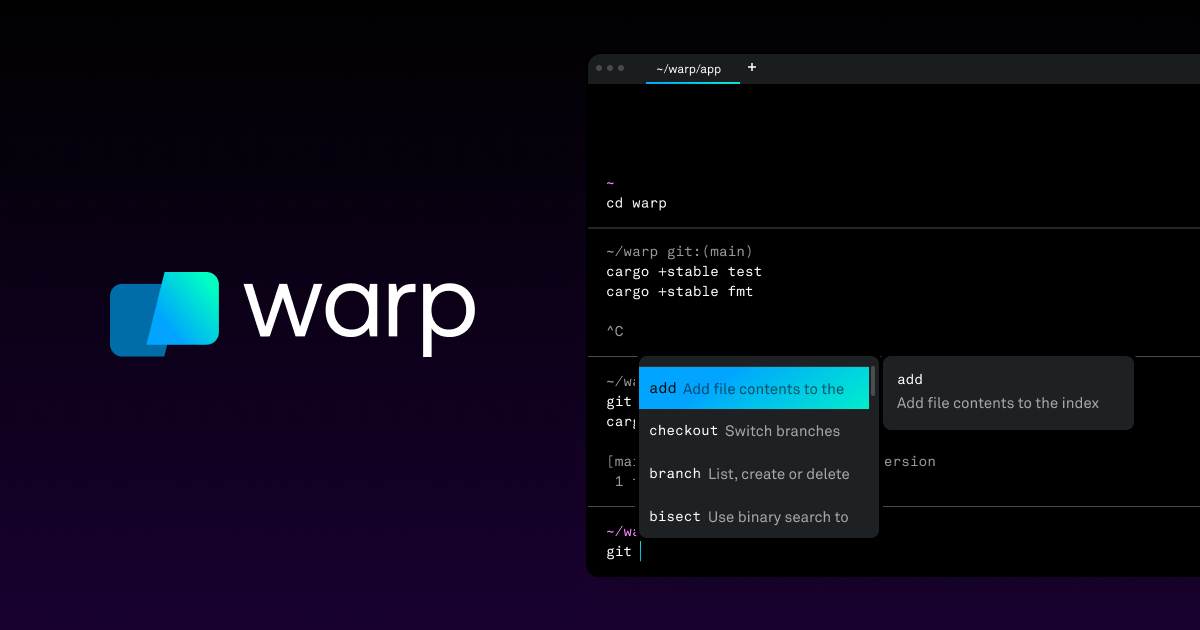
Warp reimagines the terminal as a modern application rather than a legacy artifact. It combines a faster, more feature-rich terminal experience with AI capabilities that understand what you're trying to do.
What it does well. Warp treats the terminal as a proper text editor. You can select text, navigate with keyboard shortcuts, and edit commands without the awkward cursor gymnastics traditional terminals require. This alone makes it worth trying.
The AI features build on this foundation. Warp can explain commands you don't understand, suggest commands based on natural language descriptions, and help debug errors by analyzing output. When a command fails with a cryptic error message, you can ask Warp what went wrong instead of copying the error into a search engine.
Command suggestions are context-aware. Warp understands your shell history, your current directory, and common patterns for the tools you're using. Suggestions feel relevant rather than generic.
Warp also introduces blocks—treating each command and its output as a discrete unit you can copy, share, or reference. This mental model makes terminal work feel more organized.
Where it falls short. Warp is macOS and Linux only. Windows users are excluded, which limits its usefulness for cross-platform teams. Some developers also resist the departure from traditional terminal behavior—Warp's innovations require adjustment.
The AI features require an account and internet connection. For developers working in offline environments or with strict security requirements, this dependency is problematic.
When to use it. Warp makes sense if you spend significant time in the terminal and want a modernized experience. The AI features help most when you're working with unfamiliar tools or complex commands. Developers who've mastered their current terminal setup may find less incremental value.
Pricing. Free for individual use. Team features in paid tiers starting at $15/user/month.
Aider

Aider takes a fundamentally different approach: AI pair programming directly in the terminal. No GUI, no IDE—just you, your editor, and an AI collaborator accessible through the command line.
What it does well. Aider works with your existing setup. It connects to your local git repository, understands your codebase, and makes changes to files that you review and commit normally. There's no new IDE to learn, no configuration to migrate. You keep using your preferred editor; Aider handles the AI interaction.
The git integration is thoughtful. Aider can automatically commit changes with meaningful commit messages, making it easy to track what the AI modified and roll back if needed. Each change is a discrete commit you can review, revert, or amend.
For developers who prefer working in the terminal, Aider feels natural. You describe what you want, Aider makes changes, you review the diff, and you continue. The workflow matches how many developers already work with git.
Aider also supports multiple AI models—Claude, GPT-4, local models through Ollama. This flexibility lets you choose based on capability, cost, or privacy requirements.
Where it falls short. The terminal interface is less visual than IDE-based tools. You don't see inline suggestions or highlighting; you see diffs after changes are made. For developers accustomed to the immediate feedback of Cursor or Copilot, this feels slower.
Aider requires comfort with terminal workflows. If you primarily use GUI tools for git and file management, the learning curve adds friction that might outweigh the benefits.
When to use it. Aider is ideal for terminal-native developers who want AI assistance without leaving their workflow. It's particularly valuable for developers working over SSH, in containers, or in environments where installing a full IDE isn't practical. If you're already comfortable with vim or emacs and git on the command line, Aider fits naturally.
Pricing. Free and open source. You provide your own API keys for AI models.
Honorable mentions
The fifteen tools above represent our core recommendations, but the AI developer tooling space is broader than any list can capture. These additional tools didn't make the main list—some because they're too new, others because they're specialized—but they're worth knowing about.
Promising but not yet mature
Devin generated enormous hype as the "first AI software engineer." The demos were impressive: Devin autonomously completing complex tasks, navigating codebases, and debugging its own errors. The reality is more nuanced. Access remains limited, pricing is enterprise-focused, and real-world performance varies significantly from demo conditions. Devin represents where agentic coding might go, but it's not yet a practical daily tool for most developers. Worth watching as it matures.
Windsurf offers a similar proposition to Cursor: an AI-native IDE with deep codebase understanding. Some developers prefer its interface or find its suggestions better suited to their style. If Cursor doesn't click for you, Windsurf is worth trying. The feature sets are converging, so the choice increasingly comes down to personal preference and minor UX differences.
Codeium provides a free alternative to GitHub Copilot with surprisingly capable code completion. For individual developers or teams with limited budgets, Codeium delivers meaningful value at no cost. The premium features don't quite match Copilot's polish, but the free tier is generous enough that price-sensitive users should evaluate it seriously.
Specialized for specific contexts
Amazon CodeWhisperer integrates tightly with AWS services. If your work centers on AWS infrastructure—Lambda functions, CDK constructs, service integrations—CodeWhisperer understands that ecosystem better than general-purpose tools. For AWS-heavy shops, it's a natural complement to broader coding assistants. Outside that context, the advantage diminishes.
Tabnine Enterprise focuses on privacy and on-premise deployment. For organizations that can't send code to external APIs—finance, healthcare, government contractors—Tabnine offers AI assistance that runs within your infrastructure. The capabilities don't match cloud-based tools, but for some organizations, that's an acceptable tradeoff for data control.
Continue is an open-source alternative that lets you build your own AI coding assistant. You choose the models, configure the behavior, and maintain control over the entire stack. For developers who want customization beyond what commercial tools offer, or who need to work with specific local models, Continue provides the flexibility to build exactly what you need.
Tools to watch
Augment Code is building AI assistance specifically for large, complex codebases—the kind of enterprise code where generic tools struggle with context. Early reports suggest it handles massive repositories better than alternatives, but broader availability is still rolling out.
Poolside is training models specifically for code, rather than adapting general-purpose language models. The premise is that purpose-built models will outperform adapted ones. The results aren't yet widely available, but the approach is worth tracking.
Cognition (the company behind Devin) continues developing agentic capabilities that might reshape what's possible. Even if Devin itself doesn't become your daily driver, the techniques they're pioneering will likely influence other tools.
The common thread among these honorable mentions: the space is evolving rapidly. Tools that are immature today might be essential in six months. Tools that are dominant today might be displaced by better alternatives. Staying loosely aware of the broader landscape helps you recognize when it's time to reevaluate your stack.
How to choose the right tools for your stack
Fifteen tools is a lot. You don't need all of them—in fact, trying to use too many creates more friction than it eliminates. The goal is assembling a focused stack that addresses your specific pain points without overwhelming your workflow.
Start with your actual problems
Before adopting any tool, identify what's actually slowing you down. Where do you lose time? What tasks do you dread? What work feels mechanical rather than creative?
For some developers, it's boilerplate—writing the same patterns repeatedly, setting up projects, implementing standard features. For others, it's context-switching—jumping between documentation, Stack Overflow, and editor. For others still, it's review cycles—waiting for feedback, iterating on pull requests, fixing issues that could have been caught earlier.
The right tools address your specific bottlenecks. A developer drowning in boilerplate needs different tools than one struggling with code review latency. Generic "productivity" claims matter less than whether a tool solves your particular problems.
The case for a minimal stack
There's a temptation to adopt every promising tool. Each one offers some improvement, so surely more tools means more improvement? In practice, the opposite often happens.
Each tool requires learning. Keyboard shortcuts, configuration options, mental models for when to use it—this knowledge takes time to build. Multiple tools multiply this overhead. The cognitive cost of deciding which tool to use for a given task can exceed the benefit of having options.
Each tool also requires maintenance. Updates, changing APIs, subscription management, integration debugging—these small costs accumulate. A sprawling toolkit becomes a part-time job to maintain.
The developers who report the highest satisfaction typically use two to four AI tools well rather than eight tools superficially. Depth of mastery beats breadth of adoption.
A framework for selection
Consider building your stack in layers, adding tools only when you've extracted full value from existing ones.
Layer one: Core coding assistant. Choose one primary AI coding tool and learn it deeply. For most developers, this is Cursor, GitHub Copilot, or Google Antigravity. The choice depends on how much workflow change you're willing to accept. Cursor and Antigravity require switching IDEs but offer more capability. Copilot integrates into existing editors with less friction. Pick one and commit to it for at least a month before evaluating alternatives.
Layer two: Reasoning partner. Add a conversational AI for the thinking work that doesn't fit in your editor. Claude fills this role well. Use it for architecture discussions, debugging sessions, documentation, and problems that benefit from extended reasoning. This complements your coding assistant rather than competing with it.
Layer three: Specialized accelerators. Once your core workflow is solid, consider specialized tools for specific tasks. If UI development consumes significant time, add v0. If code review is a bottleneck, add CodeRabbit. If documentation always lags, add Mintlify. Each addition should address a clear, specific problem.
Layer four: Experimental. Reserve some capacity for trying new tools without committing to them. The space evolves quickly, and today's experiment might become tomorrow's essential. But keep experiments bounded—try a tool for a specific project or time period, then evaluate deliberately.
Matching tools to project types
Different projects benefit from different tools. A rough guide:
Greenfield projects benefit from full-stack generators like Lovable or Replit Agent for initial scaffolding, v0 for rapid UI exploration, and your core coding assistant for implementation. Speed matters more than control in early stages.
Mature codebases need tools with strong codebase understanding. Cursor and Antigravity excel here. CodeRabbit adds value for maintaining quality. Avoid tools that don't understand your existing patterns—they'll generate code that clashes with your architecture.
Solo projects benefit from tools that fill gaps you can't fill yourself. CodeRabbit provides review you'd otherwise lack. Claude provides a thinking partner for architectural decisions. The goal is simulating a team when you don't have one.
Team projects need tools that integrate with collaboration workflows. CodeRabbit's PR integration, Mintlify's shared documentation, Cursor's consistency across developers—these become more valuable as team size increases.
Budget considerations
AI tools aren't free, and the costs accumulate. A realistic professional stack might include:
- Cursor Pro: $20/month
- Claude Pro: $20/month
- v0 Premium: $20/month
- CodeRabbit Pro: $15/month
That's $75/month, or $900/year, before adding any specialized tools. For professional developers, this easily pays for itself in time saved. For hobbyists or students, it's a significant expense.
`You can fund you AI stack by using Idlen. Discover more!
Free tiers exist for most tools and often provide meaningful value. GitHub Copilot is free for students and open source maintainers. Claude and v0 have usable free tiers. Google Antigravity is currently free in preview. Aider is open source. A capable stack is possible at zero cost if budget is constrained.
When deciding where to spend, prioritize tools you'll use daily over tools you'll use occasionally. A premium subscription to your core coding assistant delivers more value than premium tiers on three tools you rarely touch.
Conclusion
The AI developer tooling landscape is noisy. Every week brings new products promising to transform how you work. Most of that noise is hype—tools that demo well but fail in practice, features that sound revolutionary but don't survive contact with real codebases.
The fifteen tools in this article are different. They've earned their place through actual utility: developers use them daily, not because they're trendy but because they make work tangibly better. Cursor and Antigravity accelerate implementation. Claude deepens thinking. v0 compresses UI iteration. CodeRabbit catches what human reviewers miss. Each tool does something real.
But tools are only part of the equation. How you combine them matters more than which specific ones you choose. A developer with three well-integrated tools will outperform one with ten poorly coordinated ones. The goal isn't maximum tooling—it's minimum friction between intention and implementation.
Start small. Pick one coding assistant and learn it deeply. Add a reasoning partner for the thinking work. Then, only when you've extracted full value from those foundations, consider specialized tools for specific bottlenecks. Build your stack deliberately, evaluating each addition against a clear problem it solves.
And stay adaptive. The tools that are best today won't necessarily be best in a year. New entrants will emerge. Existing tools will evolve. Some recommendations in this article will age poorly. The meta-skill of evaluating and adopting tools matters more than any particular tool choice.
What won't change is the underlying dynamic: AI assistance is now a permanent part of software development. The developers who thrive will be those who harness it effectively—not blindly adopting every new tool, not stubbornly refusing assistance, but thoughtfully building workflows that amplify their capabilities.
The tools exist. The question is how you'll use them.
The AI developer tooling space moves fast. If your favorite tool didn't make this list, or if you've discovered something that's changed how you work, we'd like to hear about it. The best recommendations come from developers actually using these tools in the field.