How to Use Cursor AI: The Complete Beginner's Guide (2026)
Learn how to use Cursor AI from scratch. This comprehensive guide covers installation, features, keyboard shortcuts, and pro tips to maximize your AI coding productivity.
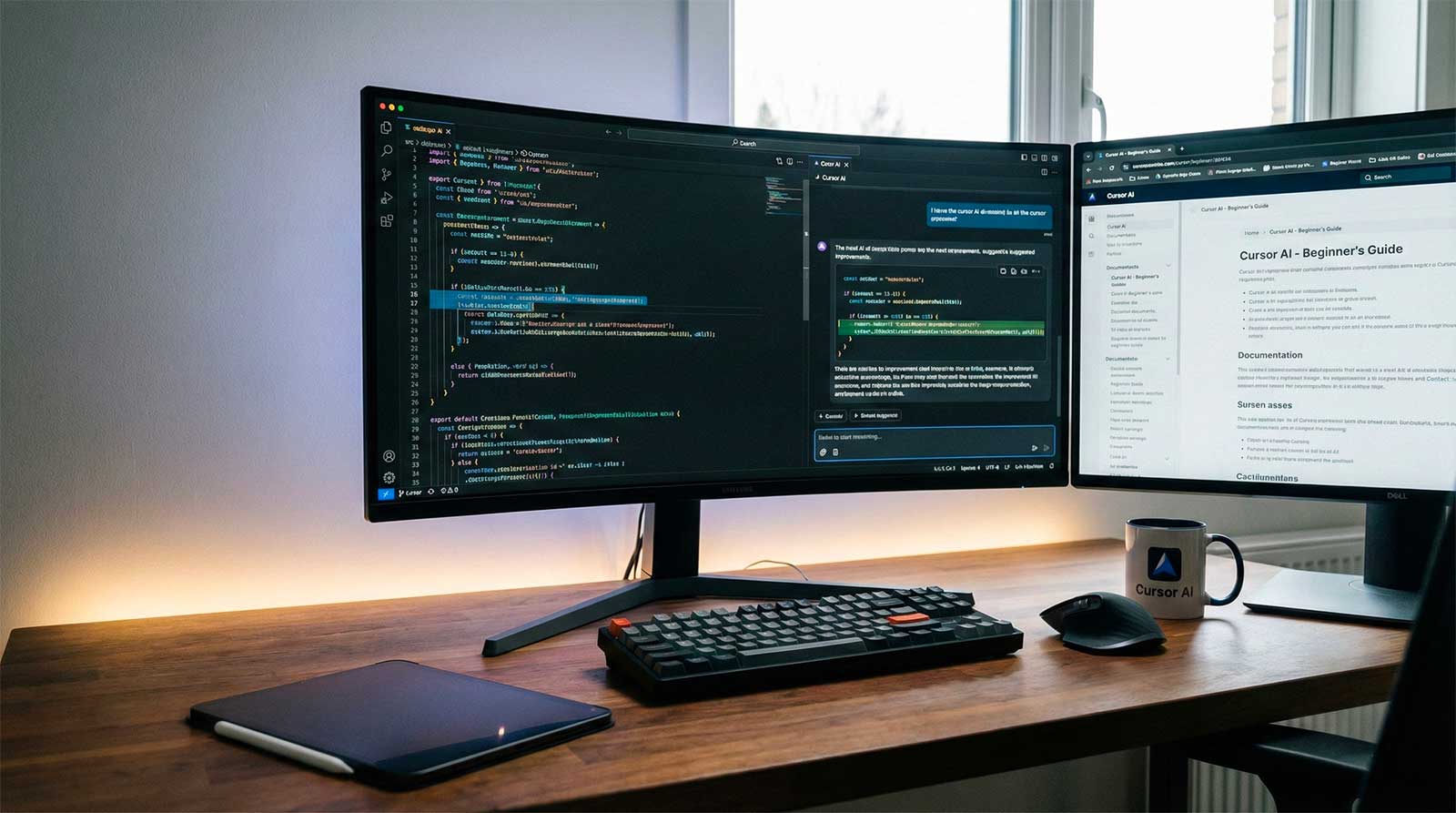
How to Use Cursor AI: The Complete Beginner's Guide
Cursor has quickly become the go-to IDE for developers who want to supercharge their coding with AI. If you're new to Cursor or want to master its features, this guide will take you from zero to productive.
What is Cursor?
Cursor is an AI-native code editor built on VS Code. It integrates AI deeply into every aspect of coding:
- Tab - Intelligent code completions
- Cmd+K - Inline code generation and editing
- Chat - Ask questions about your codebase
- Composer - Multi-file editing with natural language
Unlike GitHub Copilot (which is an extension), Cursor is a complete IDE designed from the ground up for AI-assisted development.
Getting Started with Cursor
Step 1: Download and Install
- Visit cursor.sh
- Download the installer for your OS (Mac, Windows, Linux)
- Run the installer
- Launch Cursor
Step 2: Import Your VS Code Settings
When you first launch Cursor, it will offer to import:
- VS Code extensions
- Keybindings
- Settings
- Themes
Tip: Accept this import! It makes the transition seamless.
Step 3: Sign In (Optional but Recommended)
Create a Cursor account to:
- Sync settings across devices
- Access Pro features
- Track your usage
The 4 Core Features You Must Know
1. Tab Completion
The simplest but most powerful feature. Just start typing, and Cursor suggests completions:
// Type this:
function calculateTotal(items

// Cursor suggests:
function calculateTotal(items: Item[]): number {
  return items.reduce((sum, item) => sum + item.price, 0);
}
Pro tips:
- Press
Tabto accept - Press
Escapeto dismiss - Press
Tabmultiple times for multi-line completions
2. Cmd+K (Inline Editing)
Select code and press Cmd+K (Mac) or Ctrl+K (Windows) to edit it with AI:
Example prompts:
- "Add error handling"
- "Make this async"
- "Add TypeScript types"
- "Optimize this loop"
// Select this code:
function fetchUser(id) {
  const response = fetch(`/api/users/${id}`);
  return response.json();
}

// Prompt: "Make this async with error handling"

// Result:
async function fetchUser(id: string): Promise<User | null> {
  try {
    const response = await fetch(`/api/users/${id}`);
    if (!response.ok) throw new Error('User not found');
    return await response.json();
  } catch (error) {
    console.error('Failed to fetch user:', error);
    return null;
  }
}
3. Chat (Cmd+L)
Press Cmd+L to open the chat panel. Ask questions about:
- Your current file
- Your entire codebase (with @codebase)
- Specific files (with @filename)
Example questions:
- "How does the authentication work in this project?"
- "What does @utils/helpers.ts do?"
- "Find all usages of the User class"
4. Composer (Cmd+I)
The most powerful feature. Composer can edit multiple files at once:
- Press
Cmd+Ito open Composer - Describe what you want to build or change
- Cursor proposes changes across all relevant files
- Review and accept the changes
Example prompt:
"Add a dark mode toggle to the app. Update the theme context, add a button to the header, and persist the preference to localStorage."
Composer will create/modify all necessary files.
Essential Keyboard Shortcuts
| Action | Mac | Windows |
|---|---|---|
| Tab completion | Tab | Tab |
| Inline edit | Cmd+K | Ctrl+K |
| Open chat | Cmd+L | Ctrl+L |
| Open Composer | Cmd+I | Ctrl+I |
| Accept suggestion | Tab | Tab |
| Reject suggestion | Escape | Escape |
Pro Tips for Maximum Productivity
1. Use @ Mentions in Chat
Reference specific files or symbols:
@filename.ts- Reference a specific file@codebase- Search your entire project@docs- Reference documentation
2. Write Good Prompts
Be specific about what you want:
❌ Bad: "Fix this code" ✅ Good: "Fix the null pointer exception when user.email is undefined"
❌ Bad: "Make it better" ✅ Good: "Add input validation and return appropriate error messages"
3. Use Composer for Big Changes
For changes that span multiple files, Composer is your friend:
- "Add a new API endpoint for user preferences with tests"
- "Refactor authentication from JWT to sessions"
- "Add TypeScript types to all JavaScript files"
4. Review AI Suggestions Carefully
AI is powerful but not perfect. Always:
- Read the generated code
- Check for edge cases
- Run your tests
- Understand what changed
Cursor vs GitHub Copilot
| Feature | Cursor | Copilot |
|---|---|---|
| Multi-file editing | ✅ Excellent | ❌ Limited |
| Codebase chat | ✅ Built-in | ⚠️ Limited |
| IDE | Cursor (VS Code fork) | Any supported IDE |
| Price | $20/month | $10/month |
Our take: Cursor is better for complex AI tasks. Copilot is better if you want to stay in your current IDE. For a deeper analysis, see our full Cursor vs GitHub Copilot comparison.
Earn Money While Using Cursor
Here's a bonus tip: Install Idlen and earn passive income while coding with Cursor.
Idlen shows relevant developer ads during your AI interactions, turning your coding time into money. It's:
- Non-intrusive (sidebar only)
- Privacy-first (we don't read your code)
- Easy to cash out
Install Idlen for VS Code/Cursor →
Common Questions
Is Cursor free?
Cursor offers a free tier with 2,000 completions per month. Pro is $20/month for unlimited usage.
Can I use Cursor with my VS Code extensions?
Yes! Most VS Code extensions work in Cursor.
Is my code private?
Cursor doesn't train on your code by default. You can enable/disable codebase indexing in settings.
Which AI model does Cursor use?
Cursor lets you choose between GPT-4, Claude, and other models. Curious which AI is best for coding? Check our best AI coding assistants guide.
Conclusion
Cursor is the most powerful AI coding tool available today. Start with these basics:
- Tab for quick completions
- Cmd+K for inline edits
- Chat for questions
- Composer for big changes
Master these four features, and you'll be coding faster than ever.
Don't forget: Install Idlen to earn money while you code!
Related Articles
- Best AI Coding Assistants in 2026: Complete Comparison — Compare Cursor vs Copilot vs Claude
- Cursor vs GitHub Copilot — Detailed head-to-head comparison
- Cursor vs Windsurf — Which AI IDE is right for you?
- Vibe Coding: How AI Is Changing Developer Work — The new paradigm
- 10 Passive Income Ideas for Developers — Earn while you code with Idlen
Earn passive income while you code
Install Idlen and earn money from your idle browser time. Zero extra work, 100% privacy.